Design - Create - Grow

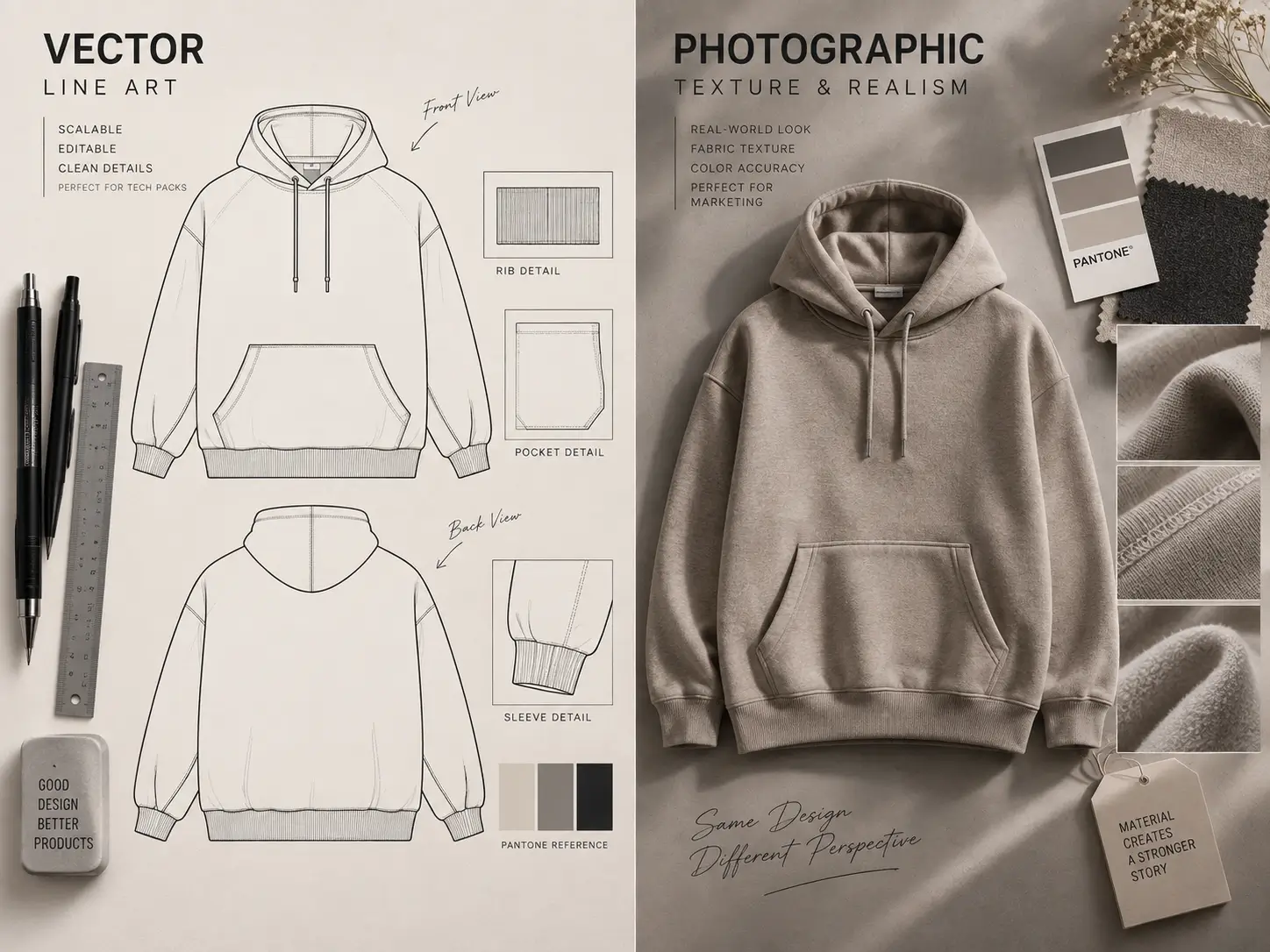

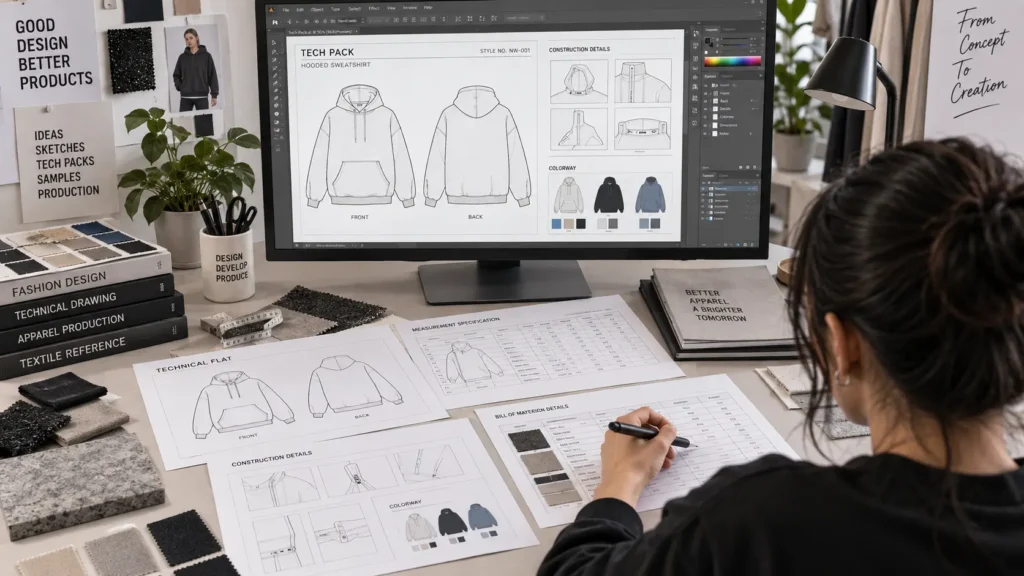
Once a garment design moves from sketch to production, you need a way to document every construction detail so a factory can build it correctly. That documentation lives inside a tech pack, and choosing the right tech pack software is one of the first practical decisions a designer or brand owner faces. The problem is that “tech pack software” isn’t one category of application — it’s a mix of tools that each handle a different part of the job.
Creating a tech pack usually means combining more than one type of software: something for technical flats and artwork, something for structured data like measurements and materials, and something for final delivery to a manufacturer.
This article compares Adobe Illustrator, Photoshop, Canva, Excel/Google Sheets, PDF workflows, and dedicated tech-pack platforms specifically for the task of building, editing, organizing, and delivering a tech pack — not for running a clothing brand in general. By the end, you’ll have a practical framework for matching software to the part of the process it actually solves.
Quick answer: Tech pack software is any application or combination of tools used to create, edit, organize, and deliver the technical documentation required for apparel development. Adobe Illustrator is particularly useful for vector technical flats, artwork, callouts, and structured layouts, while Photoshop, spreadsheets, PDFs, and dedicated tech-pack platforms can support different parts of the workflow.
Table of Contents
What Is Tech Pack Software?
There’s no single software category built to handle every tech-pack task from start to finish. “Tech pack software” is really an umbrella term that can refer to general-purpose design software adapted for technical documentation, spreadsheet software for structured data, document and PDF tools for delivery, dedicated apparel technical-documentation platforms, or — most commonly — a combination of these.
That’s because creating a tech pack and delivering a tech pack are different jobs. Drawing an accurate technical flat requires precise line work and scalable graphics. Building a measurement chart requires structured rows and columns with formulas. Getting the finished document into a factory’s hands requires a stable, shareable file format.
Few single applications do all three equally well, so a practical workflow often uses more than one tool, chosen according to garment complexity and how the brand communicates with its manufacturer.
A tech pack typically needs to support:
- Technical flat creation
- Construction callouts
- Artwork and graphics
- Colorway documentation
- BOM and materials
- Measurement specifications
- Page layout
- PDF export
- Version control
- File delivery
What Does Tech Pack Creation Actually Require?
Before comparing software, it helps to break down the tasks a tech pack has to cover. Most garment tech packs include some version of the following:
- Technical flats (clean, proportionate line drawings of the garment)
- Garment construction callouts (stitching, seams, closures)
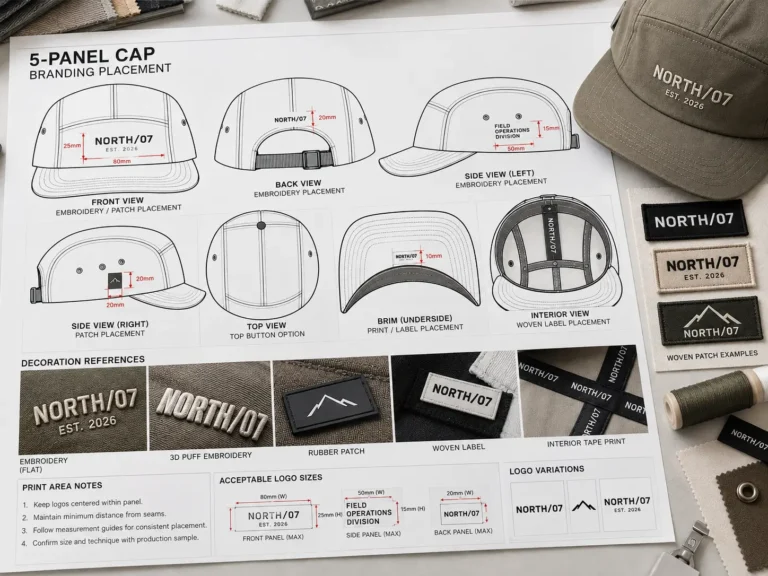
- Artwork placement (logos, prints, embroidery positioning)
- Colorways (the color variations the garment will be produced in)
- Material and trim information
- Bill of Materials (BOM)
- Measurement specification tables
- Size and grading information
- Label and packaging details
- Revision history
- Overall document layout
- Final file export
A simplified workflow looks like this:
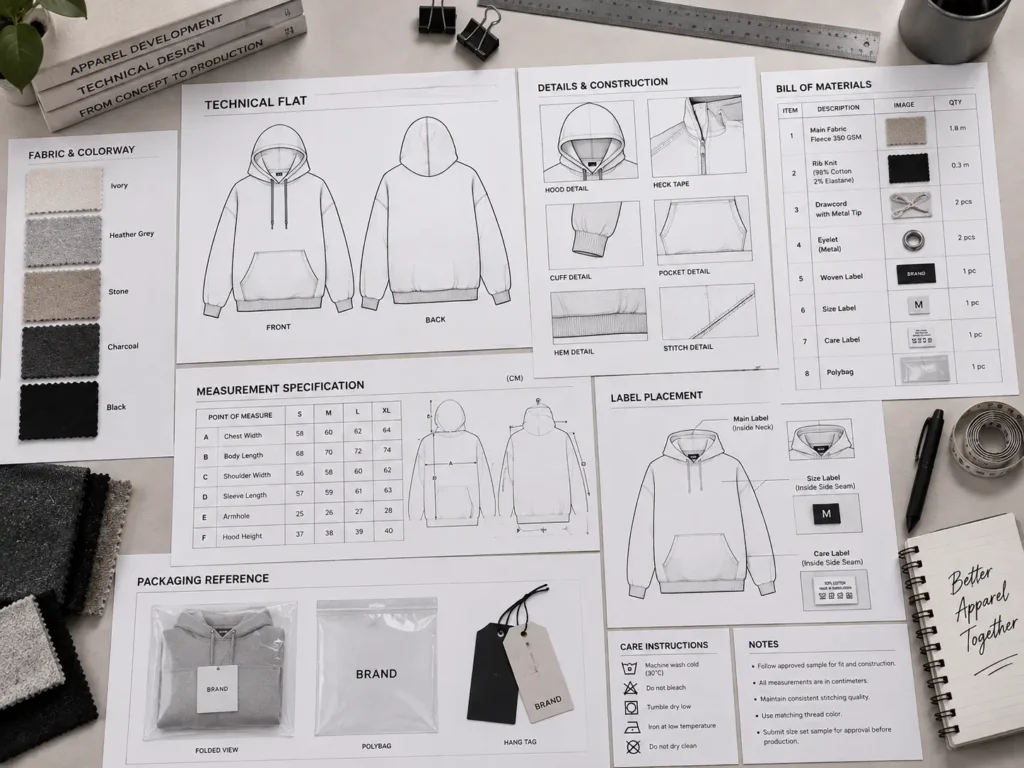
Design concept → Technical flat → Construction details → Artwork → Materials/BOM → Measurements → Document layout → PDF/export → Manufacturer communication → Revision
Notice how different each of these steps is. A technical flat is a drawing task. A BOM is a data-organization task. Export and delivery is a document-management task. This is why judging software only on whether it can technically “make a tech pack” can be misleading — the real question is which part of that chain a given tool actually handles well.
Adobe Illustrator for Tech Packs
Adobe Illustrator is a vector graphics application, meaning it builds artwork from mathematical paths rather than pixels, so lines and shapes stay crisp at any size. Illustrator is described by Adobe as vector graphics and illustration software. That characteristic is a major reason it’s commonly used for apparel technical documentation: a technical flat drawn in Illustrator scales cleanly from a small thumbnail to a full-page factory printout without losing sharpness.
Illustrator is particularly useful for:
- Vector-based technical flats with precise line work
- Front, back, and side garment views
- Construction detail callouts
- Pattern and design reference graphics
- Artwork placement and colorway development
- Typography and page composition
- Reusable components across multiple styles
- Editable source files that stay easy to update
- PDF export, along with AI, EPS, and SVG vector workflows where a manufacturer or printer requests them
It’s worth being clear about the distinction here: Illustrator is a general vector-design application, not a dedicated apparel tech-pack platform. It doesn’t come with garment construction knowledge built in, and it won’t generate accurate measurements on its own — that still depends on the designer’s own pattern and fit knowledge.
Illustrator also doesn’t replace a spreadsheet for organizing a BOM or a size chart; many designers build those sections separately and place or link them into the Illustrator layout. The quality of the final tech pack still depends entirely on how accurately the designer enters the technical information, not on the software itself.
Illustrator tends to make the most sense for designers who are already comfortable in the program, for graphic-heavy garments that need custom artwork placement, and for brands that want editable vector assets they can reuse across seasons. If you want more background on what a complete tech pack typically contains, see What Is a Tech Pack.
Illustrator vs Photoshop for Tech Packs
Photoshop is a raster graphics editor built primarily for photo and image editing — it works with pixel-based images rather than scalable vector paths, though it does include some vector and shape tools for layout work. Photoshop is described by Adobe as an image editing and design application built around raster-based photo editing, with layout tools such as vector shapes, fonts, and artboards.
| Task | Adobe Illustrator | Adobe Photoshop | Practical consideration |
|---|---|---|---|
| Technical flats | Strong fit — precise, scalable vector line work | Possible but not its primary purpose | Illustrator is generally the more direct tool for accurate technical flats |
| Vector artwork | Native strength | Limited vector support | Use Illustrator when scalability matters |
| Raster image editing | Not a core function | Native strength | Use Photoshop for photos and textures |
| Artwork placement | Strong for vector logos/prints | Strong for photographic or textured artwork | Depends on whether the artwork is vector or raster |
| Garment construction callouts | Well suited via paths and text | Achievable, but more manual | Illustrator’s path tools make repeat edits faster |
| Page layout | Strong, with reusable artboards | Workable for single pages | Illustrator scales better across multi-page documents |
| Colorway visualization | Fast recoloring of vector shapes | Possible via layers and adjustments | Both can work; workflow preference matters |
| Photo/reference editing | Not a core function | Native strength | Use Photoshop for fabric or reference photography |
| Production artwork | Fits vector-based print/embroidery files | Fits raster-based print files | Confirm which format your printer or factory requests |
| PDF export | Supported | Supported | Both can output a shareable PDF |
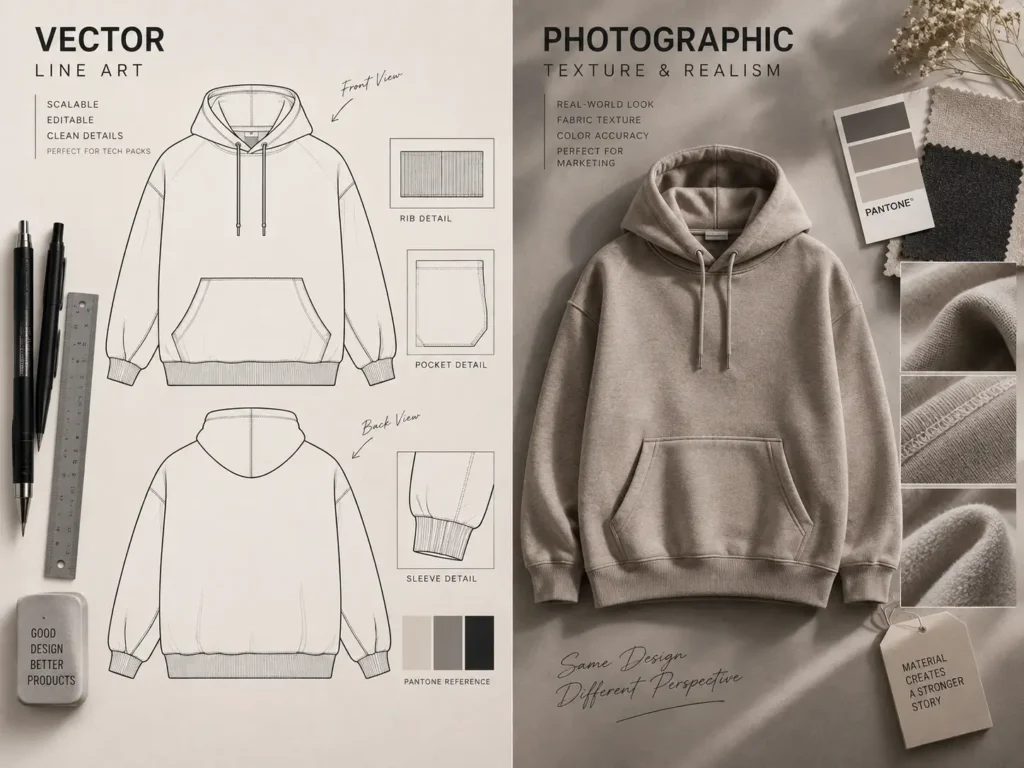
Illustrator is generally the better-suited tool for vector technical flats and scalable, line-based artwork, while Photoshop is more useful for raster imagery, photographic references, textures, and visual presentation work. Photoshop shouldn’t automatically be treated as a substitute for Illustrator when precise vector technical flats are the priority.
In practice, many designers use both in the same project — Illustrator for the flats and layout, Photoshop for supporting imagery — rather than treating it as an either/or choice. Not every garment requires both; simpler styles with no photographic elements may only need Illustrator.
Can You Use Canva to Create a Tech Pack?
Canva is a browser-based design tool built around templates and drag-and-drop layout, and it’s positioned by Canva itself as a general design tool for things like social posts, presentations, and posters. Canva describes itself as a free-to-use online graphic design tool for creating social media posts, presentations, posters, videos, logos, and more.
Where Canva can fit into a tech-pack workflow:
- Simple document layouts for internal review
- Visual presentations of a collection or concept
- Basic tables for lightweight specification summaries
- Branding-consistent internal documents
- Easy sharing and collaboration for teams that already use Canva
Where it tends to fall short for production-oriented technical documentation:
- Precise technical flats that need exact proportions and scalable line work
- Complex vector editing of garment shapes
- Detailed garment construction diagrams
- Production-ready artwork files for printers or embroiderers
- Advanced measurement documentation with grading logic
- Highly customized technical drawing workflows
Canva can be a reasonable choice for a quick internal-facing document or a presentation deck, but it isn’t built as a dedicated apparel-production application, and designers should weigh its limitations carefully before relying on it for a factory-facing technical drawing.
Using Excel or Google Sheets for Tech Packs
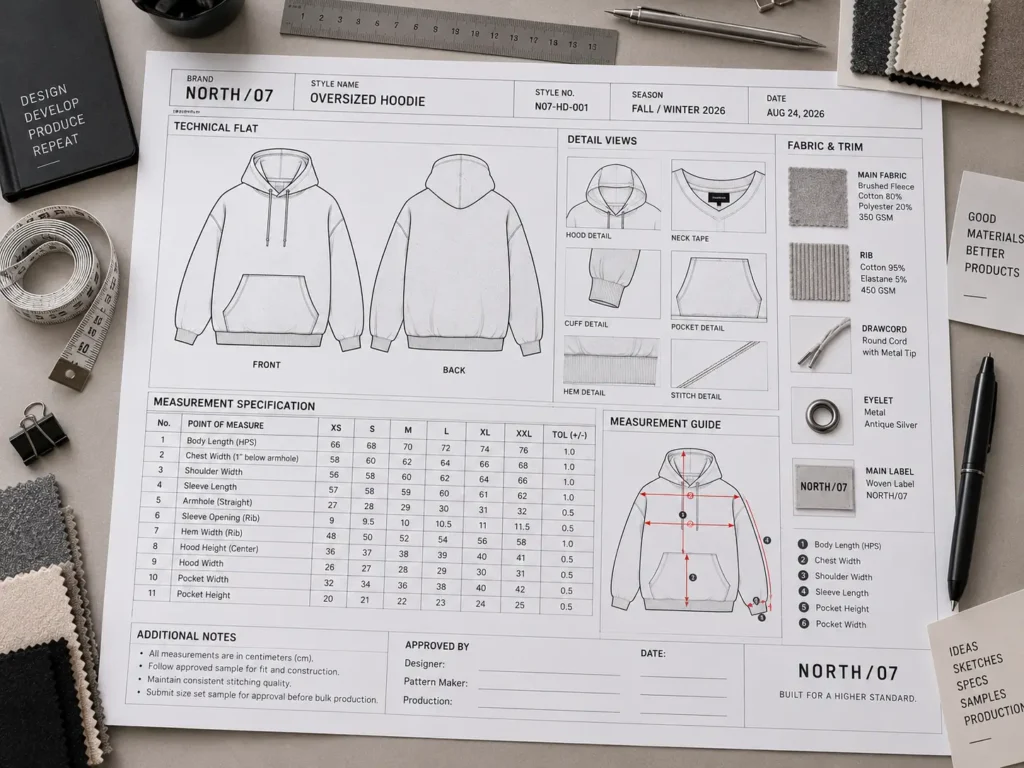
Spreadsheets are widely used, well-documented tools for organizing structured data, and both Microsoft Excel and Google Sheets are described by their makers as spreadsheet applications for data organization, calculation, and analysis. Microsoft describes Excel as the industry-leading spreadsheet application and data analysis tool. Google Sheets is described as part of Google Workspace, built for creating and collaborating on spreadsheets.
Inside a tech pack, spreadsheets play a supporting rather than a central role. They’re well suited to:
- Measurement specification tables and points of measure
- Tolerances and grading across a size range
- Bill of Materials (BOM) entries
- Trim lists and material quantities
- Internal development or cost-tracking data where relevant
- Revision tracking across style versions
Their limitations are just as important to understand. Spreadsheets aren’t designed for technical flats or illustration, and they offer little in the way of drawing tools for garment construction. Formatting can also shift when files move between spreadsheet programs or get exported into a different document format.
Because of this, a hybrid approach tends to work well: Illustrator (or another design tool) for the visual technical documentation, and Excel or Sheets for the structured measurement and BOM data, which can then be placed into or referenced alongside the visual layout. For more detail on what typically belongs in each section of a tech pack, see What Is Included in a Fashion Tech Pack.
Where Does PDF Fit Into a Tech Pack Workflow?
PDF is a document-delivery and review format, not a design application in itself. A PDF tech pack is generated from a source file — Illustrator, a dedicated tech-pack platform, or another application — rather than built natively as a PDF from scratch.
PDF is useful for:
- Sharing a fixed, consistent layout with a factory or client
- Reviewing and approving a version before production
- Printing physical copies for a sample room
- Archiving completed, approved documentation
- Distributing a document digitally without requiring the recipient to own the source software
Its limitations matter too. A PDF isn’t the easiest format to edit for future changes, since it’s meant to be a finished snapshot rather than a working file. It also doesn’t automatically bundle every separate production asset a factory might need — some manufacturers request additional editable source files or standalone artwork files alongside the PDF.
And having a PDF doesn’t by itself guarantee the factory has everything required for production; that still depends on what was actually included and communicated. It helps to think of the source file and the final PDF as serving two different purposes: one for editing, one for delivery and review.
Dedicated Tech Pack Software
Beyond general-purpose design and office applications, there are platforms built specifically around apparel technical documentation. Because features vary meaningfully between providers, it’s worth checking current product documentation directly before choosing one, rather than assuming a specific feature set.
Some dedicated platforms may offer features such as:
- Structured, style-specific tech-pack templates
- Garment style records
- Built-in measurement tables
- BOM management tools
- Colorway tracking
- Commenting and review tools
- Version history and management
- Team collaboration features
- Cloud-based access
- Export tools for sharing with factories
Potential advantages of this category include a more structured, apparel-specific workflow and centralized documentation, which can make repeatable processes easier for a growing team. Potential limitations include subscription or platform dependency, less flexibility for highly customized visual layouts compared with a general design tool, a learning curve when switching from a familiar workflow, considerations around migrating existing files, and the fact that manufacturer compatibility with a given platform’s export still needs to be confirmed case by case.
Dedicated software isn’t automatically superior to a tool like Illustrator — it’s a different trade-off between structure and flexibility, and the right choice depends on team size, collaboration needs, and how customized your documentation needs to be.
Tech Pack Software Comparison: Illustrator vs Photoshop vs Canva vs Excel/Sheets vs Dedicated Tools
| Tool | Best suited for | Technical flats | Artwork | Specifications/BOM | Document layout | Editable workflow | Potential limitation |
|---|---|---|---|---|---|---|---|
| Adobe Illustrator | Vector technical flats, artwork, page layout | Strong | Strong (vector) | Manual/linked | Strong | Strong | Doesn’t manage structured data natively |
| Adobe Photoshop | Raster imagery, photo references, textures | Workable, not primary | Strong (raster) | Not a core function | Workable | Workable | Limited precision for scalable line work |
| Canva | Simple layouts, internal presentations | Limited | Basic | Basic tables only | Workable for simple docs | Workable | Limited precision for production drawings |
| Excel / Google Sheets | Measurements, BOM, structured data | Not applicable | Not applicable | Strong | Not applicable | Strong for data | No illustration capability |
| Dedicated tech-pack software | Centralized, apparel-specific documentation | Varies by platform | Varies by platform | Often strong | Structured, template-based | Varies by platform | Less layout flexibility; platform dependency |
| PDF workflow | Final review and delivery | N/A (delivery format) | N/A | N/A | Fixed, not editable | Not an editing format | Not a source file for future changes |
“Best” here depends entirely on which part of the process you’re trying to solve. A designer weighing Illustrator against Photoshop is really asking a drawing question, while a designer weighing Excel against a dedicated platform is really asking a data-organization question — they’re not the same decision.
Which Tech Pack Software Should You Use?
Rather than a single winner, it helps to match the tool to what you’re actually trying to solve:
If you primarily create technical flats: Illustrator’s vector tools make it well suited to precise, scalable garment drawings that hold up from a screen preview to a full factory printout.
If your workflow is heavily image-based: Photoshop supports fabric photography, texture references, and raster artwork that Illustrator isn’t built to edit.
If you need simple visual documents: Canva can work for internal presentations or quick visual summaries, though it isn’t the tool to reach for when precise technical drawing is required.
If your biggest need is measurement and structured data: Excel or Google Sheets can carry the size chart, tolerances, and BOM cleanly, especially when multiple people need to update the same data.
If you manage many styles and need centralized documentation: A dedicated tech-pack platform may be worth evaluating, particularly for teams that need shared access and version history across a growing catalog.
If you need maximum flexibility: A hybrid workflow that combines two or three of these tools according to their strengths often serves independent designers and small brands better than trying to force everything into one application.
A Practical Adobe Illustrator Tech Pack Workflow
For designers building tech packs primarily in Illustrator, a typical sequence looks like this:
- Set up the tech-pack document and page structure
- Create or import the technical flats
- Add construction callouts
- Add colorways
- Add artwork placement details
- Organize materials and trims (often referencing a spreadsheet built separately)
- Add measurement specifications
- Add labels and packaging information
- Add revision information
- Export the approved document to PDF
- Save and organize the editable source files
- Supply separate production artwork files when the factory or printer requests them
Some of these steps may happen in a different application depending on your workflow — for example, building the BOM in a spreadsheet before placing a summary into the Illustrator layout.
Build an Editable Illustrator Tech Pack
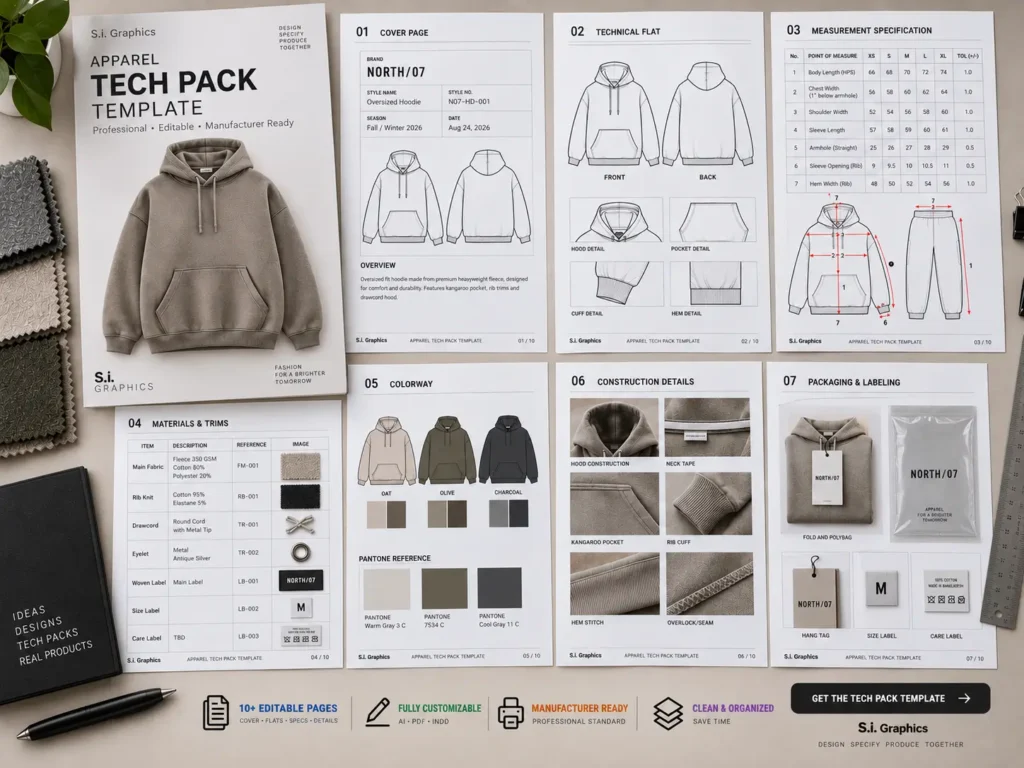
If you create technical flats and specifications in Adobe Illustrator, the Adobe Illustrator Tech Pack Template can provide a structured starting point for organizing your tech-pack pages.
Why a Hybrid Tech Pack Software Workflow Can Make Sense
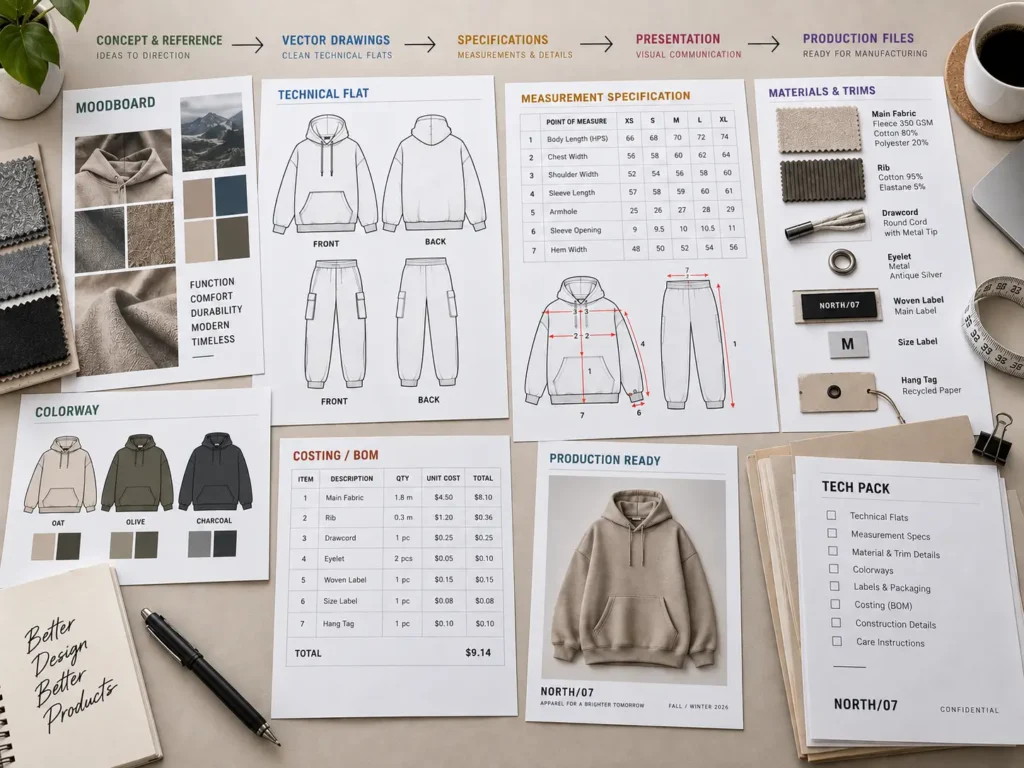
Professional apparel workflows rarely rely on a single application, and there’s no requirement that they should. A common division of labor looks like this:
- Illustrator: technical flats, vector artwork, callouts, page layout
- Photoshop: raster artwork, fabric or photo references, image editing
- Excel/Sheets: measurement specifications, BOM, structured data
- PDF: final review and sharing with the factory or client
- Dedicated software (where used): centralized product documentation across multiple styles
Separating tasks by each tool’s strengths tends to produce cleaner results than forcing one application to do everything. Alongside the software choice, a few habits matter just as much: consistent file naming, clear version control, marking which document is the currently approved version, keeping organized editable source files, and confirming what a specific manufacturer actually requires before finalizing a delivery format.
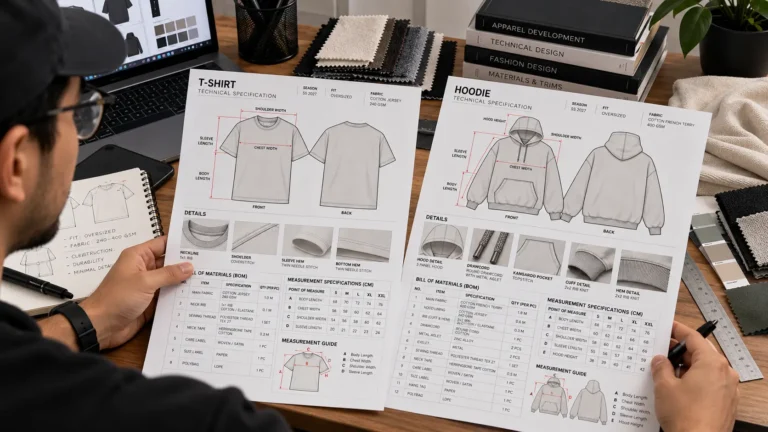
Example: Building a Tech Pack for an Oversized T-Shirt
This is a simplified, illustrative workflow — not a claim about any specific factory, timeline, or cost.
Garment: Oversized T-Shirt
In Illustrator: front and back technical flats, construction callouts, graphic placement, and a colorway page.
In Excel/Sheets: measurement specification with points of measure, tolerances, and a size range, plus the BOM.
In Photoshop (optional): preparing or cleaning up artwork or reference imagery before placing it in the flat.
Final PDF: the combined technical document used for internal review and manufacturer communication.
This is one reasonable way to structure the work, not a universal requirement — a simpler garment might need fewer steps, and a more complex one might add more.
Common Tech Pack Software Mistakes
- Choosing software based on popularity rather than the task at hand
- Trying to build precise technical flats in Photoshop when vector accuracy is needed
- Attempting to manage complex technical drawings entirely inside a spreadsheet
- Using Canva when highly precise technical drawing is required
- Treating a PDF as if it were an editable source file
- Sending an outdated PDF version to a factory
- Failing to preserve editable source files after export
- Embedding low-resolution artwork into a technical document
- Not organizing production artwork as separate, clearly labeled files
- Mixing measurement units inconsistently across a document
- Not confirming what file formats a specific manufacturer actually requires
- Assuming dedicated tech-pack software removes the need for technical apparel knowledge
- Treating a purchased template as a finished, manufacturer-ready tech pack before entering accurate garment-specific data
- Spreading a project across too many disconnected tools without version control
How to Choose Tech Pack Software for Different Apparel Projects
As garment complexity or team size increases, certain software capabilities matter more:
- Simple T-shirt: A vector tool for flats plus a basic spreadsheet for measurements is often enough.
- Hoodie or sweatshirt: More construction detail (hood, pocket, cuffs) benefits from Illustrator’s layered, reusable components.
- Pants: Grading across a size range makes structured spreadsheet data more important.
- Outerwear: Multiple materials and hardware components increase the value of a detailed BOM.
- Graphic-heavy streetwear garment: Vector artwork placement becomes a bigger part of the workflow, favoring Illustrator.
- Complex fashion garment: More construction pages and callouts benefit from a well-organized, multi-page layout tool.
- Multi-style clothing collection: Centralized documentation, as offered by some dedicated platforms, becomes more valuable at scale.
- Small independent brand: A lean Illustrator-plus-spreadsheet workflow is often sufficient and keeps costs manageable.
- Larger design/product-development team: Collaboration features and version control become more important than layout flexibility alone.
For garment-specific breakdowns, see T-Shirt Tech Pack Template and Hoodie Tech Pack Template for Factory Production.
What File Formats Should Your Tech Pack Workflow Produce?
The output formats your workflow produces depend on both the software used and what your manufacturer needs:
- AI: preserves an editable Illustrator source file for future revisions
- PDF: provides a fixed, shareable document for review, approval, and factory communication
- EPS or SVG: may be requested for certain vector-artwork or printing workflows
- Excel/Sheets files: support structured specifications and BOM data that can be shared or updated independently
- JPG/PNG: useful for visual previews or quick references, though not for production-precision artwork
There’s no universal format every manufacturer accepts — some request editable source files, others only want a finished PDF, and requirements can vary by the type of artwork (print versus embroidery, for example). Confirming this directly with your manufacturer before finalizing your workflow avoids unnecessary rework.
Frequently Asked Questions
What is tech pack software?
It’s a general term for any application, or combination of applications, used to create, edit, organize, and deliver the technical documentation needed for apparel production — distinct from general fashion-design or business software used to run a clothing brand.
Is Adobe Illustrator good for tech packs?
Illustrator is well suited to vector technical flats, artwork, construction callouts, and page layout, thanks to its scalable, precision-based drawing tools. It doesn’t replace the technical apparel knowledge needed to draft accurate measurements and construction details.
Can I make a tech pack in Photoshop?
Photoshop can support raster imagery, fabric or photo references, and visual presentation elements, but it isn’t primarily built for the precise vector line work that technical flats usually require. Many designers use it alongside Illustrator rather than instead of it.
Can I create a tech pack in Canva?
Canva can work for simple internal documents or presentations, but its precision and vector-editing capabilities are limited compared with dedicated design software, which matters for factory-facing technical drawings.
Can I make a tech pack in Excel?
Excel and Google Sheets are strong for measurement tables, BOMs, and other structured data, but they aren’t technical-drawing applications, so they’re typically paired with a design tool for the visual portions of a tech pack.
Do I need dedicated tech pack software?
It’s optional. Whether it’s worth adopting depends on your team size, how many styles you manage at once, and whether you need built-in collaboration and version-history features beyond what a general design tool and spreadsheet combination offers.
Should I send the manufacturer an Illustrator file or PDF?
That depends on the manufacturer’s own requirements. A PDF is a stable format for review and approval, while an editable source file may be needed if the factory or a third party will make direct edits. It’s worth confirming this directly rather than assuming.
What software is best for creating a fashion tech pack?
There’s no single best answer — it depends on whether you’re prioritizing precise technical flats, structured specifications, ease of collaboration, layout customization, or centralized documentation across many styles. Most designers end up using a combination rather than one tool alone.
Conclusion
Tech pack software isn’t one product — it’s a set of tools that each handle a different part of turning a design into manufacturer-ready documentation. Adobe Illustrator tends to fit best for vector technical flats, artwork, and page layout.
Photoshop supports raster imagery and photographic references. Spreadsheets carry structured measurement and BOM data. PDF handles final review and delivery. And dedicated tech-pack platforms offer a more centralized, apparel-specific structure for teams managing many styles at once.
The right combination depends on your garment’s complexity, your team size, and how you communicate with your manufacturer — not on a universal “best” application. If you already work in Illustrator and want a structured starting point, the Adobe Illustrator Tech Pack Template can help organize your layout. If you’re developing multiple garment types and want a broader starting library, the Complete Tech Pack Library covers essential core styles in one collection.